Posts

Showing posts with the label tutorials

Diskless Workstations Advantage and Disadvantages
Image
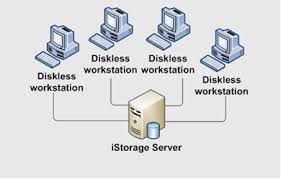
A diskless workstation or PC on a local-area network (LAN) is a computer system that does not have its own disk. Instead, it stores files on a network file server. This type of system uses network booting to load the operating system, but it does contain its own main components including the CPU, RAM, video, sound and network adapter (see "workstation" for a description of common components). Diskless workstations can reduce the overall cost of a LAN because one large-capacity disk drive is usually less expensive than several low-capacity drives. In addition, diskless workstations can simplify backups and security because all files are in one place -- on the file server. Also, accessing data from a large remote file server is often faster than accessing data from a small local storage device. One disadvantage of diskless workstations, however, is that they are useless if the network fails. Advantages of Diskless Setup Significantly reduce initial capital and implementation co...

Installing Network Printer to Windows Server 2012 Essentials

Image
Section 1 – Prerequisites Go to your vendor’s web site and download the appropriate x86 and x64 print drivers. For my needs, I downloaded the drivers for Windows 7 (32bit) and Windows 2012 (64 bit). Next, extract the driver files to subfolders. In my case, the HP files I downloaded are self-extracting files. But be sure you uncheck the option to run the install immediately after extracting the files. Finally, before proceeding, make sure you know the IP address of your network printer. Section 2 – Add the Network Printer Go to Control Panel –> View Devices and Printers (under Hardware) Click on Add a Printer. It will scan for new printers, and we should expect that it will not find any.  Click on The printer that I want isn’t listed link. On the next screen, click on the Add a local or network printer as an administrator link. The scan will run again, and (again) we will click on The printer that I want isn’t listed link. Select the Add a printer using a TCP/IP address or hostna...

Managing user accounts in Windows Server 2012

Image
The Windows Server 2012  Dashboard provides a simple and user-friendly interface for managing user accounts. To add a user account to Windows Server 2012 , perform the following steps: Open the Dashboard. Click Users on the navigation bar. Click Add a user account in the Tasks pane. Follow the prompts in the Add a User Account Wizard to create the user account. To remove a user account from Windows Server 2012 , perform the following steps: Open the Dashboard. Click Users on the navigation bar. Select the user account that you wish to remove. In the Tasks pane, click Remove the user account. Follow the prompts in the Delete a User Account Wizard to remove the user account. The wizard  provides the option to delete files associated with the user, including the user's redirected folder  and  File History backups, when the account is deleted. To retain these files on the server, make sure the corresponding box is unchecked.

Windows Server 2012

Image
Windows Server 2012: A Short Introduction A customer of ours recently called to discuss the release of the new Windows Server 2012 edition (called Server 8 in pre-release guises), due out later this year. His questions were focused on the expected impact such a release would have and whether Microsoft’s marketing hype that it would ‘redefine‘ the server OS category was kosher. Rewind back to 2008 and the release of the first Crucial VPS’s in Australia. We offered the then new Windows Server 2008 on our new to market Windows VPS. Server 2008 replaced the long-standing and widely used Server 2003 and utilised Windows Longhorn architecture, this release was seen as an evolution in terms of non-Unix server OS releases. Windows Server 2008 R2 soon followed and was built on the Windows NT 6.1 core, the same OS core used on the new desktop version of Windows called ‘7’, which was released in October 2009. Windows Server R2 introduced many improved features and enhancements including new funct...

How to Fix the Most Common Problems With LCD Monitors

Image
Most Common Problems With LCD Monitors Computer monitors are fairly simple, in use if not in actual construction: plug ’em in, turn ’em on, look at your computer stuff on the brighter part. But misleadingly easy as they might seem, there’s a lot of stuff going on inside that blank plastic case…and a lot of stuff that can go wrong. Unfortunately, most of that stuff requires either a certified repair or a complete replacement to fix. Unless you’re especially handy with electronics and you just happen to have access to cheap replacement parts, it’s usually better to either return a monitor to the manufacturer (if it’s under warranty) or simply buy a new one. Even so, here are the most common ailments for modern LCD monitors, and what can be done to fix them…or not. Stuttering or Flickering If your monitor’s screen is often flashing or stuttering, there are a few different problems that you could be facing. It might be something as simple as a loose or faulty video cable. So first, tighten...

Reset your Windows 10 local account password

Image
If you forgot your Microsoft account password, follow these steps . If you don’t have a Microsoft account and forgot your local account password, you can’t recover it. Instead, you’ll need to reset your PC. Note: If you’re using Windows 10, version 1803, and added security questions to your local account to help you reset your password, select Reset password on the sign-in screen. (This link appears after you enter an incorrect password.) Then enter the answers to the security questions and choose a new password. Warning: Following these steps will remove all of your data, programs, and settings. 1.Start your PC and select the Power  icon in the bottom right-hand corner of the lock screen. 2.While holding down the Shift key, select Restart. 3.On the Boot options menu, select Troubleshoot > Reset this PC > Remove everything. 4.Your PC will restart and will reset itself.

SSD vs HDD

Image
Most people now buy laptops for their computing needs and have to make the decision between getting either a Solid State Drive (SSD) or Hard Disk Drive (HDD) as the storage component.  So which of the two is the better choice, an SSD or HDD? There’s no straight-forward answer to this question; each buyer has different needs and you have to evaluate the decision based on those needs, your preferences, and of course budget. Even though the price of SSDs has been falling, the price per gigabyte advantage is still strongly with HDDs. Yet, if performance and fast bootup is your primary consideration and money is secondary, then SSD is the way to go. For the remainder of this article, we will make a comparison of SSD and HDD storage and go over the good, the bad, and the ugly of both. What is an SSD? We’ll make no assumptions here and keep this article on a level that anyone can understand. You might be shopping for a computer and simply wondering what the heck SSD actually means? To beg...

What Is a VPN, and Why Would I Need One?

Image
A VPN, or Virtual Private Network, allows you to create a secure connection to another network over the Internet. VPNs can be used to access region-restricted websites, shield your browsing activity from prying eyes on public Wi-Fi, and more. These days VPNs are really popular, but not for the reasons they were originally created. They originally were just a way to connect business networks together securely over the internet or allow you to access a business network from home. VPNs essentially forward all your network traffic to the network, which is where the benefits – like accessing local network resources remotely and bypassing Internet censorship – all come from. Most operating systems have integrated VPN support. What Is a VPN and How Does It Help Me? In very simple terms, a VPN connects your PC, smartphone, or tablet to another computer (called a server) somewhere on the internet, and allows you to browse the internet using that computer’s internet connection. So if that server...

How to find a MAC address

Image
Follow these instructions if you need to find your computer's Media Access Control address (MAC address). It is the unique identifier of a network adapter.  The MAC address is a 6-digit hexadecimal number, which is normally written as a twelve character alphanumeric string with a colon (:) or other separating character after every second character: Example of a MAC address:  00:00:00:a1:2b:cc If you computer has more than one network adapter (for example, an ethernet adapter and a wireless adapter), it will have a different MAC address for each adapter. To find the MAC address: Windows Vista, Windows 7: Click the Start button. In the Run text box, type cmd.  This will open the command window. At the command prompt, type ipconfig /all. Copy down the "Physical Address" (aka the MAC address) from the "Ethernet adapter Wireless Network Connection" section. Close the command prompt window. Windows 2000, 2003, XP, NT: Click Start > Run. In the Run text box, type cm...

Steps on How to Backup and Delete Logs

Image
For FS800U Need to put the USB Connector and USB FLASH DRIVE to the Biometric Machine (FS800U) If the biometric have ADMIN, need admin to log in the biometrics Go toPen drive Click OK DOWNLOAD ATTLOGS and DOWNLOAD USERS will appear Click the DOWNLOAD ATTLOGS After you click the DOWNLOAD LOGS, Successful message will appear after you downloads logs is DONE You can now check your file in the computer. If the file is complete you can now delete the logs. DONE For FS800 You need to LOG IN the FSDM7 OR T4 After you log in, go toTRANSFER LOGS Click OK Date Range will appear Select the date and year you backup Note: You may select the year and date in the back up but if you are delete no  daterange appears, in short if you delete, all the logs will deleted. Click OK Right theFILE NAMEandLOCATIONyou save. Check your back up logs first if it is complete before you delete DONE S teps on How to Delete Attlogs from the Biometrics If the biometric have ADMIN , need admin to log in the biome...

Website Creation Tutorial for Beginners

Image
Want to learn the ABC's of creating a website? Congrats! You just stumbled upon the right place. There's a lot of information on this site and if you're a beginner, it can be overwhelming. I created this quick guide just to give you an idea of what's involved with creating a website. I encourage you to read it through once without clicking on any of the links just so you can understand the big picture. Then after you've absorbed the info, go back and click the links for more info. Need Ideas? Having Trouble with Topic Choice? While it's often tempting to choose topics where you've seen others have success, it's not always best to follow the leader. Read about the importance of topic choice here . What You Need to Build a Website 1) Domain Name The domain name creates the address of your site.  So, mywebsite.com would be an example of a domain name.  Domain names are paid for yearly and you can register them here . Looking for a ...